JFPainter
Image editing in layers.
Draw, retouch and put pictures together, with brushes that follow your pen, 14 blend modes, 50 effects and the file formats you actually meet, from the HEIC on your phone to a layered PSD.
- Windows
- Linux
- Web
- Android experimental
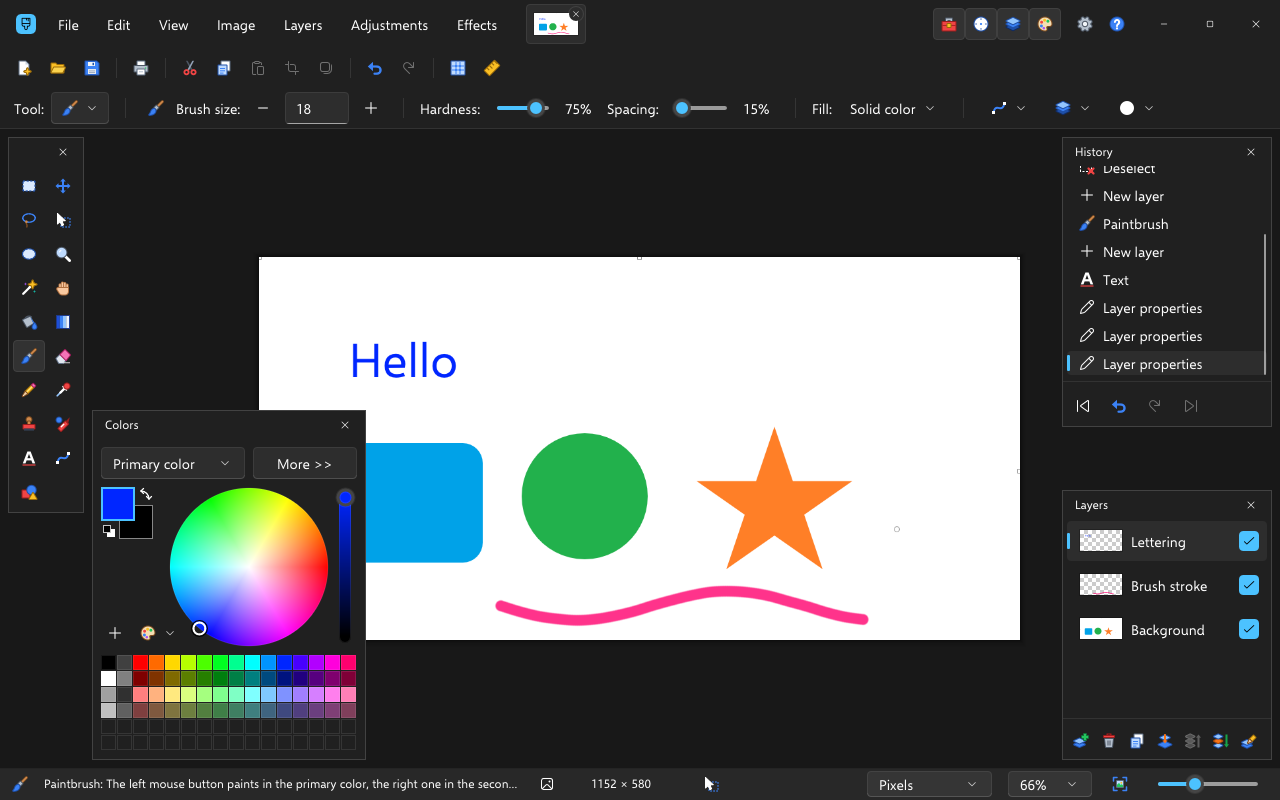
JFPainter in its dark theme, with the Tools, Colors, History and Layers panels.
- 14blend modes for your layers
- 50effects, plus 15 adjustments
- 15image formats, from PNG to PSD
- 3languages: English, German, French
Work in layers.
Keep the background, the painting and the lettering apart and change each one on its own. Every layer has its own opacity and one of 14 blend modes, and you can hide, duplicate, merge or reorder it.
Open several pictures side by side in tabs. The History panel keeps every step, so going back is always one click away.
- LetteringNormal · 100%
- Brush strokesMultiply · 80%
- Sun and hillsNormal · 100%
- BackgroundNormal · 100%
Brushes that follow your hand.
Brush, pencil, eraser, fill, gradients, colour picker, clone stamp and recolour are all there. A brush reacts to pen pressure, and you set its size, hardness, spacing, flow and scatter, or give it a tip made from an image of your own.
Colours come from a colour wheel and a palette you can save and load again.

- SpacingDabs overlap along the stroke
- Pen pressureThin, thick, thin again
- HardnessA soft or a hard edge
- ScatterDabs spread around the line
Select, write, add shapes.
Pick out an area with the rectangle, ellipse, lasso or magic wand, add to it or cut parts away, then move, rotate or scale what you picked.
Text uses the typographic features of your fonts and handles right-to-left scripts. Lines, curves and ready-made shapes stay adjustable until you place them, and you can add shapes of your own.
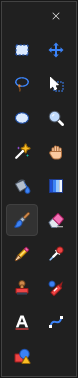
- Select, move, zoomRectangle, lasso, ellipse, magic wand
- PaintFill, gradient, brush, eraser, pencil, colour picker, clone stamp, recolour
- Text and shapesText, lines and curves, shapes
Adjust, then add effects.
Fix colour and exposure with curves, levels and thirteen more adjustments. Then choose from 50 effects, from blurs and photo fixes to oil paint and clouds.
You see the result while you set it, and only the area you selected changes. Cropping, resizing, rotating and flipping are a click away in the Image menu.
Effects50 in nine groups
- Blur10Gaussian, motion, bokeh, radial, zoom
- Photo9Content-aware fill, red eye removal, sharpen, vignette
- Distort9Bulge, twist, pixelate, crystallize, frosted glass
- Artistic6Oil painting, pastel, pencil sketch, ink sketch
- Object4Drop shadow, inner shadow, bevel
- Render4Clouds, turbulence, fractals
- Stylize4Emboss, relief, edge detection, outline
- Noise3Add noise, reduce noise, median
- Color1Quantize
Adjustments Curves, levels, hue and saturation, brightness and contrast, exposure, shadows and highlights, colour balance, temperature and tint, black and white, sepia, posterize and more.
Opens what you have. Saves what you need.
Photos from a phone, pictures for the web, textures for games: JFPainter opens and saves fourteen image formats, and opens large PSB files too.
PSD and PDN files keep your layers. Every other format saves the finished picture. More formats can come as plugins.
- PNG.png
- JPEG.jpg
- WebP.webp
- AVIF.avif
- HEIC.heic, .heif
- JPEG XL.jxl
- TIFF.tif
- GIF.gif
- BMP.bmp
- TGA.tga
- DDS.dds
- JPEG XR.jxr
- PSD.psdwith layers
- PDN.pdnwith layers
- PSB.psbopens only
Grows with plugins.
JFPainter has its own plugin interface for effects, adjustments, file formats and shapes. If you have G'MIC-Qt installed, its large collection of filters opens from the Effects menu.
On Windows, JFPainter also runs many existing paint.net plugins, effects and file types alike, through your own paint.net installation. On Linux the same works through Wine.
 JFPainter
- JFPainter pluginsEffects, adjustments, file formats and shapes, as native modules for Windows and Linux
- G'MIC-QtA large collection of filters, installed separately. Windows and Linux
- paint.net pluginsEffects and file types, with your own paint.net installation. Windows, and Linux through Wine
Built on JFLib
JFPainter is made with JFLib, a GUI library written from scratch in Rust that draws every pixel itself. That is why the same app runs on Windows and Linux, in the browser and on Android.