 JFPainter
Features
Everything JFPainter does, one idea per chapter. Pick one, or read from top to bottom.
One window, many pictures.
Every picture you open gets a tab in the title bar, with a small preview. The four panels, Tools, Colors, History and Layers, float above the canvas: show or hide each one with its button, drag it where it suits you, and it snaps to the edges of the window.
Zoom and pan with the mouse, the keyboard or two fingers, and turn on rulers and a pixel grid in pixels, inches or centimetres. Opening another picture from your file manager adds a tab to the window that is already open, and the pictures you open and save show up in your system's list of recent files.


Layers, and a history that remembers.
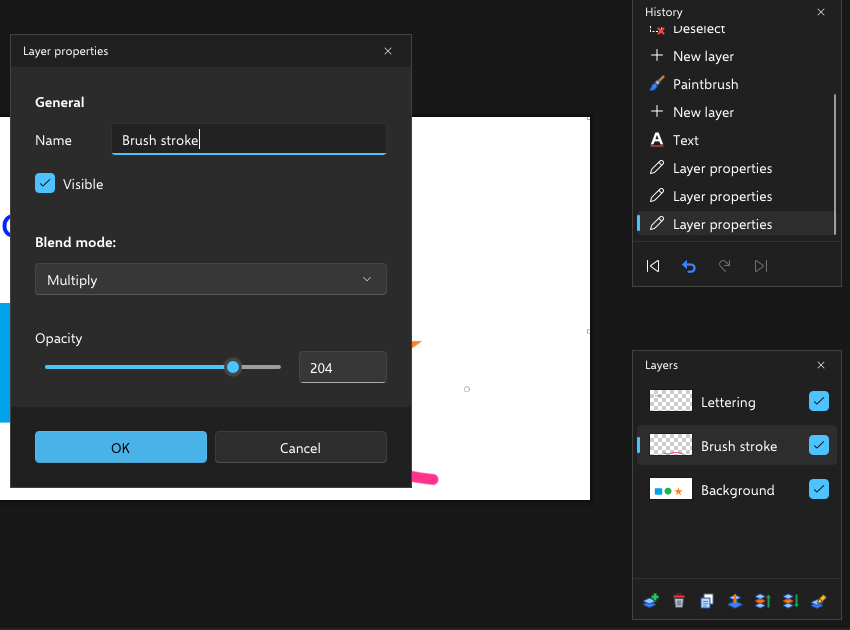
Add, delete, duplicate and merge layers, move them up and down, flip or rotate a single one, and hide it with one click. The layer properties, name, visibility, blend mode and opacity, change live while you watch; only OK turns them into a step. Import a picture as a new layer, and if it is larger than the canvas, JFPainter asks what to do.
The History panel lists every step by name. Click any of them to go back there, or forward again. When memory gets short, older steps are packed away first.
Brushes, colours and fills.
Paintbrush, eraser, clone stamp and recolour respond to pen pressure. In the brush tip dialog you load a tip from a PNG, BMP or TIFF image and set its angle, scatter, the variation of size and angle, the flow, and whether the tip turns with the stroke. Six round tips come with the app, and JFPainter reads the supported settings of presets from popular brush plugins.
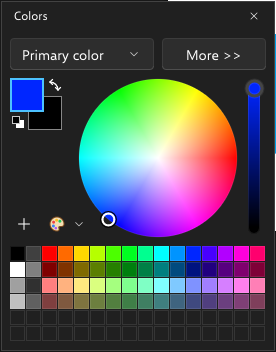
Fill and gradient come with their own options, the colour picker takes its colour from one layer or from the whole picture, and recolour swaps one colour for another as you paint. The Colors panel keeps a primary and a secondary colour, a colour wheel and a palette you save and load as a text file.
Selections, text and shapes.
Draw rectangles and ellipses freely, at a fixed ratio or at a fixed size; they keep their handles, so you can still adjust them. The lasso follows your hand, and the magic wand picks similar colours with a tolerance you set, on one layer or the whole picture. Then move the pixels or just the outline, rotate and scale them, or crop the picture to the selection.
Text goes straight onto the canvas, with font, size, bold, italic, underline and strikethrough, three kinds of rendering and three alignments. It is shaped with your fonts' OpenType features, mixes left-to-right and right-to-left scripts and falls back to other fonts for missing characters. Lines, curves and shapes, the built-in ones and your own, keep their handles until you finish them.
- Replacethe default
- AddCtrl + left button
- Subtractright button
- IntersectAlt + left button
- InvertCtrl + right button
Adjustments and effects.
Every adjustment and effect shows its result on the canvas while you change its settings. OK applies it through the selection as one step in the history, and Ctrl+F repeats the last effect. Curves and Levels have dialogs of their own, Levels with histograms of the picture.
Fifteen adjustments and fifty effects in nine groups come built in. Plugins add more of both, and they appear right in these menus.
Adjustments 15
Auto level, Black and white, Advanced black and white, Brightness / contrast, Color balance, Color temperature / tint, Curves, Exposure, Hue / saturation, Invert alpha, Invert colors, Levels, Posterize, Sepia, Shadows / highlights
Blur 10
Bokeh, Fragment, Gaussian blur, Motion blur, Radial blur, Sketch blur, Square blur, Surface blur, Unfocus, Zoom blur
Photo 9
Content-aware fill, Dodge / burn, Glow, Red eye removal, Retouch portrait, Sharpen, Soften portrait, Straighten, Vignette
Distort 9
Bulge, Crystallize, Dents, Frosted glass, Morphology, Pixelate, Polar inversion, Tile reflection, Twist
Artistic 6
Advanced oil painting, Dream, Ink sketch, Oil painting, Pastel, Pencil sketch
Object 4
Bevel, Drop shadow, Feather object, Inner shadow
Render 4
Clouds, Julia fractal, Mandelbrot fractal, Turbulence
Stylize 4
Edge detection, Emboss, Outline, Relief
Noise 3
Add noise, Median, Reduce noise
Color 1
Quantize
Files and formats.
PSD keeps raster layers with their names, visibility, opacity and supported blend modes. Groups, masks, text and layer effects of a PSD arrive as the finished picture. PDN keeps the layer stack too.
JFPainter edits with 8 bits per channel. A picture with more depth, or one that has to be converted on opening, opens as a new, unsaved document with a note, so the original file is never overwritten by accident.
Palettes load and save as text files, your own shapes come from XAML files, and a plugin adds QOI. You can also print, with a preview, and assign a colour profile in the Image menu.
| Format | Open | Save | Good to know |
|---|---|---|---|
| PNG.png | yes | yes | Lossless, with transparency |
| JPEG.jpg .jpeg .jfif | yes | yes | Photos, no transparency |
| WebP.webp | yes | yes | Lossy or lossless, with transparency |
| AVIF.avif | yes | yes | Based on AV1 |
| HEIC / HEIF.heic .heif | yes | yes | The format of many phone cameras |
| JPEG XL.jxl | yes | yes | A better writer comes as a module on the desktop |
| JPEG XR.jxr .wdp .hdp | yes | yes | |
| TIFF.tif .tiff | yes | yes | With compression and bit depth options |
| GIF.gif | yes | yes | An animation opens with its first frame |
| BMP.bmp .dib | yes | yes | |
| TGA.tga | yes | yes | |
| DDS.dds | yes | yes | Game textures, with mipmaps and cube maps |
| PSD.psd | yes | yes | Keeps raster layers |
| PDN.pdn | yes | yes | Keeps raster layers |
| PSB.psb | yes | no | Save the result as PSD or PDN |
Your look, your language.
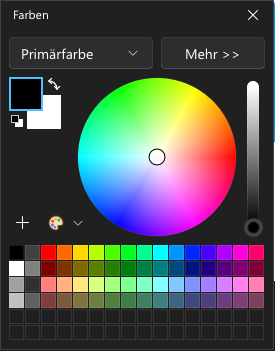
JFPainter's look comes from JFLib's styles. The setup lets you choose between WinUI, Classic, macOS and KDE, and light and dark work in each of them.
The app speaks German, English and French, and you switch in the settings. Menus, dialogs and messages are translated in all three.
It runs on Windows and Linux, in the browser and, as an experiment, on Android, where painting, opening files and two-finger zoom already work with your fingers.
WinUI 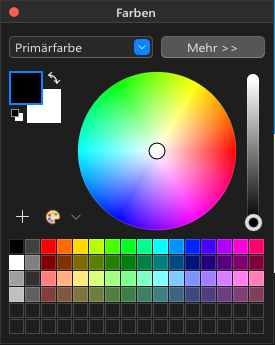
macOS 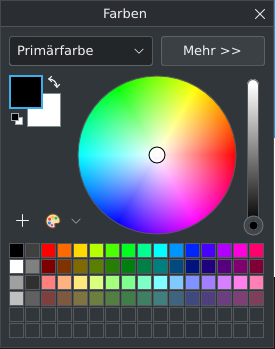
KDE